A new photo library, and placing several photos at once
One photo library now serves both the Photos page and the editor. You can also choose several photos, place them together and let the editor fill the empty frames.
Photos are at the heart of every yearbook, so we have rebuilt the way they are collected and placed.
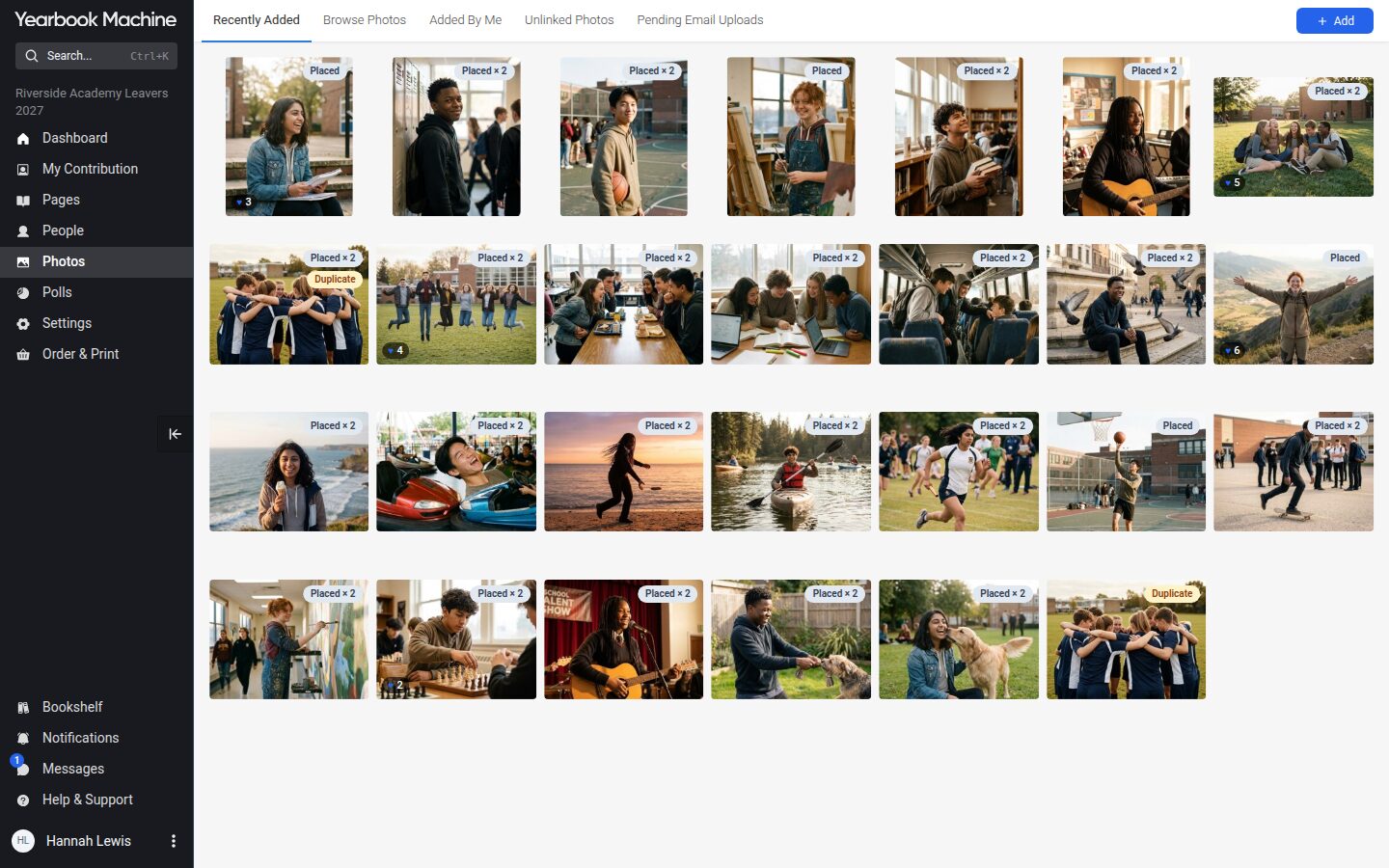
One library for the Photos page and the editor
The Photos page and the photo tray in the page editor used to be two separate systems. They are now one library, so what you see on Photos is exactly what you see while you work on a page.
The library has tabs for Recently Added, Browse Photos, Added By Me, Unlinked Photos and Pending Email Uploads, and you can browse by pages or by people.
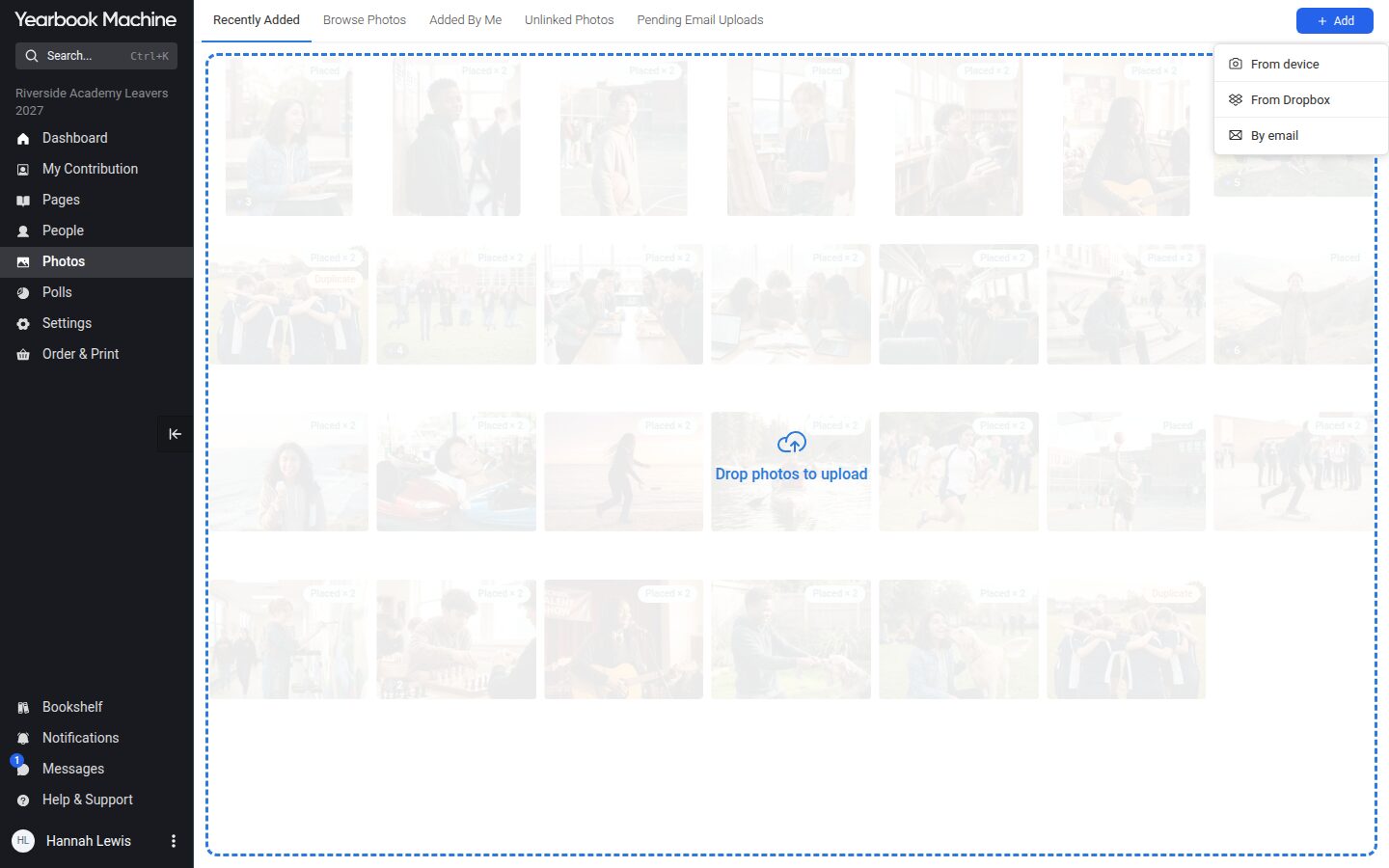
Adding photos
Press "Add" to upload "From device", "From Dropbox" or "By email". You can also drag files from your computer anywhere onto the library, and each upload shows its progress as it goes.
Photos emailed in from an address that does not belong to a member of the book wait under Pending Email Uploads until an editor approves them.
A new photo window
Opening a photo shows its details, likes, comments and the pages it is linked to. Rotate, black and white and revert are in its editor, and every photo now has its own web address, so you can share a link to it with the rest of your team.
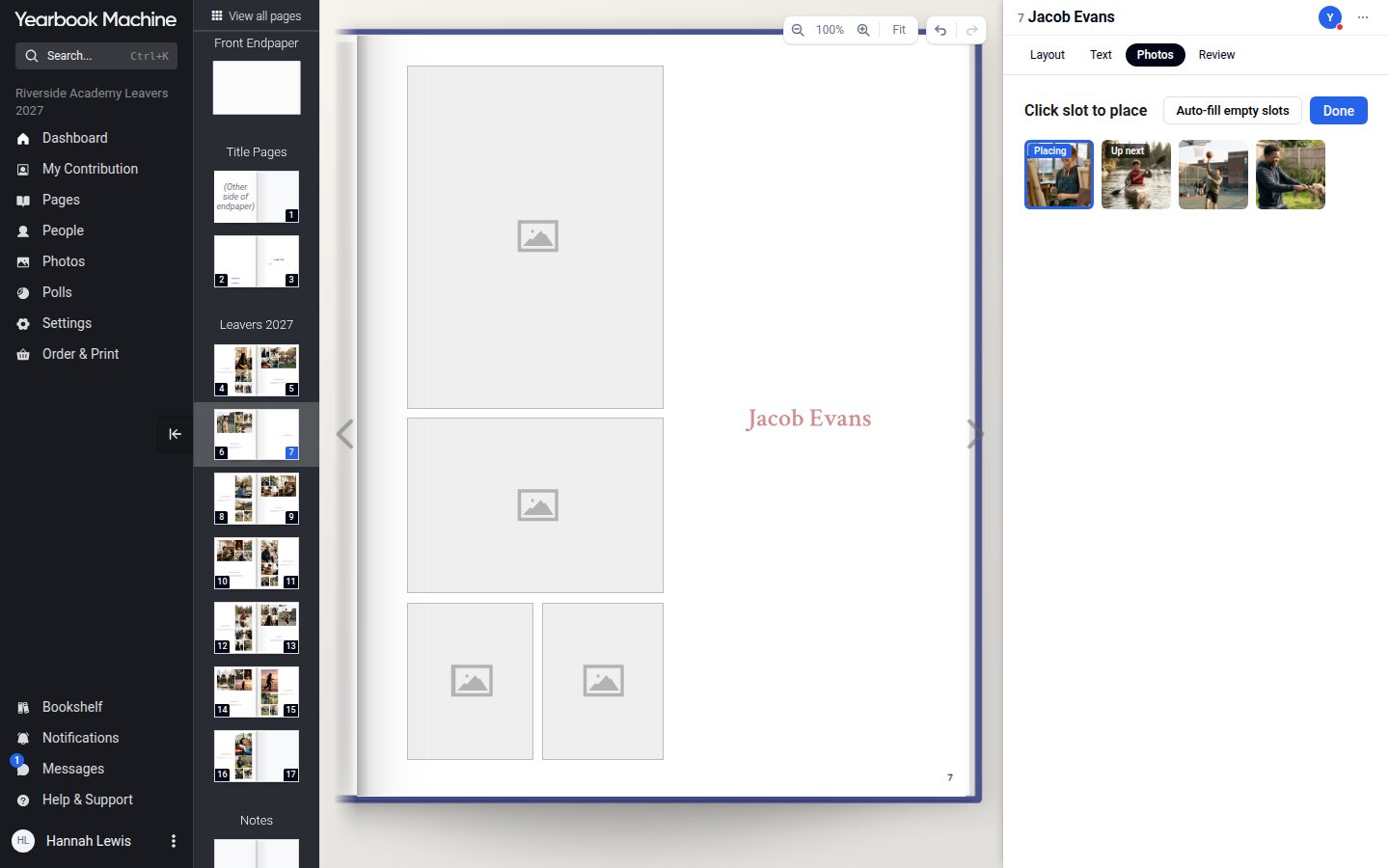
Place several photos at once
In the page editor you can select an empty frame and then tap a photo to put it there. Or select several photos and press "Place photos". "Auto-fill empty slots" then puts them into the empty frames in reading order, without touching frames you have already filled. Click a placed photo to zoom, crop or remove it.