
A new Pages screen: drag pages in and rearrange whole sections
The Pages screen now shows your book as real spreads. Add a page by dragging it to the exact spot you want, and move whole sections by dragging them.
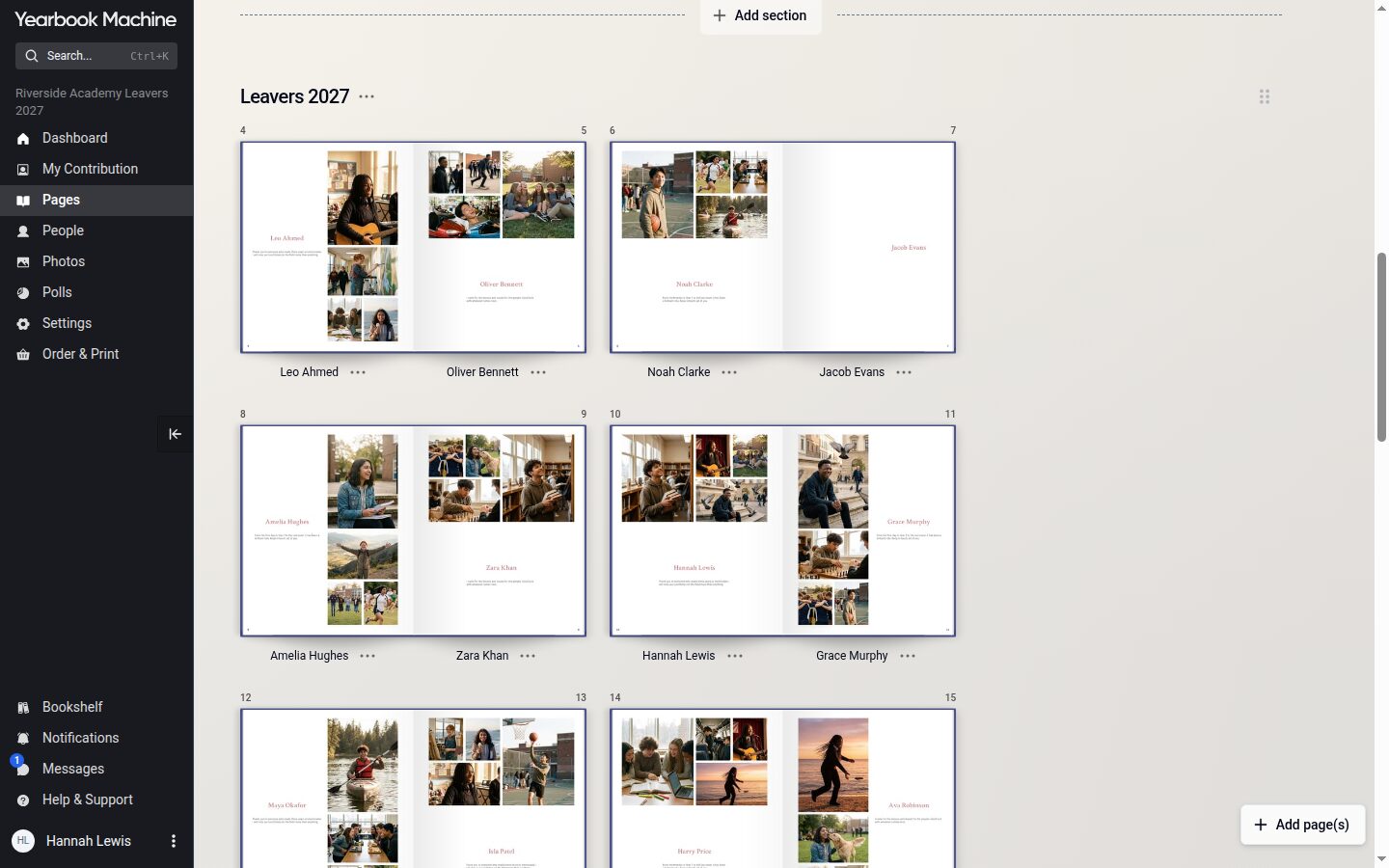
Today we have released a new Pages screen, together with a new menu and phone layout across the whole site.
Your book as real spreads
Pages used to show a grid of flat thumbnails. It now shows each spread as it will look in the finished book, as a hardback or a softback, so it is easier to get a feel for how the book reads from cover to cover.
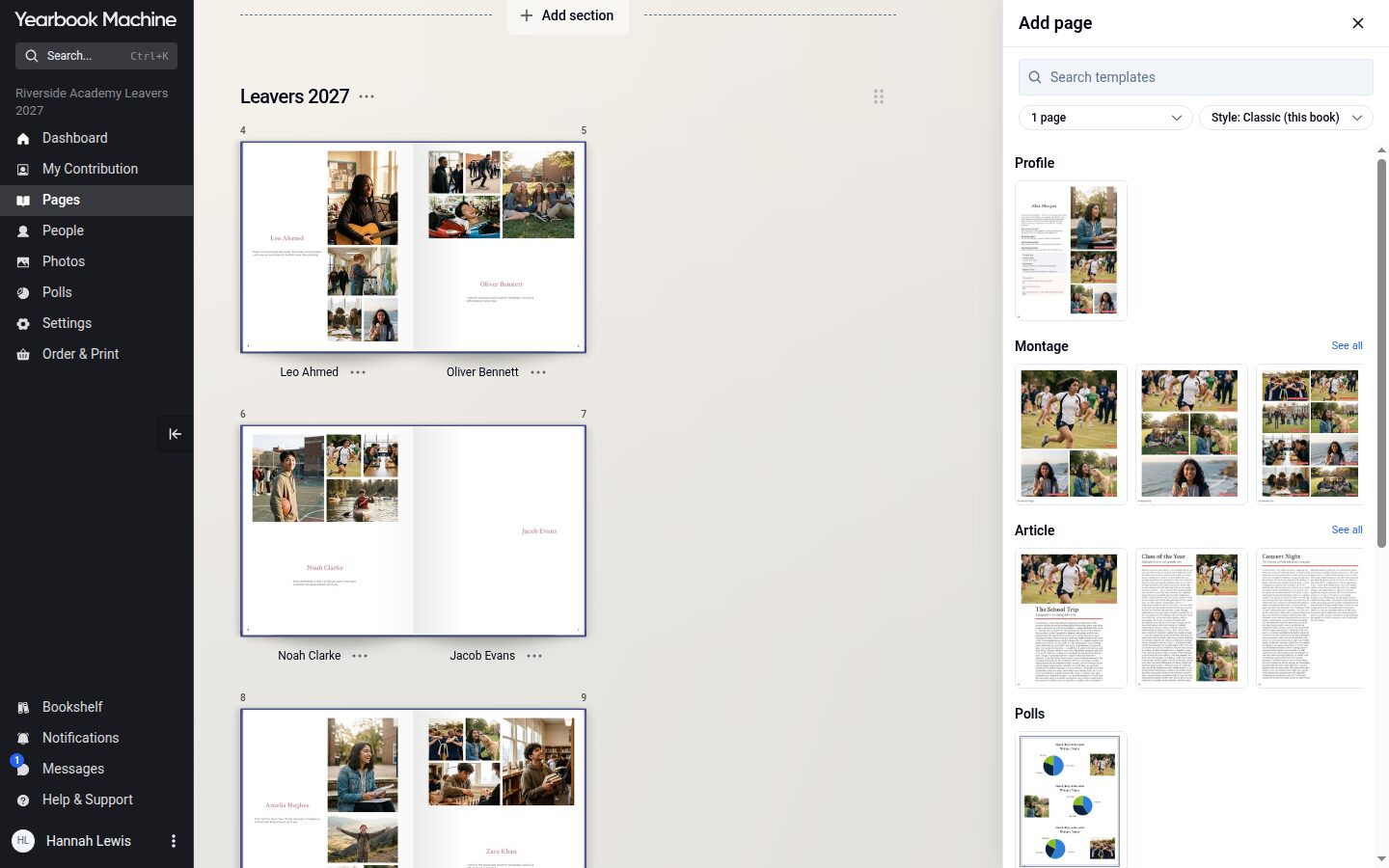
Add pages exactly where you want them
Until now, "Add Page" at the end of each section put the new page at the end of that section, and you moved it into place afterwards. Now "+ Add page(s)" opens a floating tray. Drag a page from the tray to any point in the book and it goes straight there. The tray stays open, so you can add several pages in one go.
Rearrange whole sections
Sections can now be dragged into a new order, taking all their pages with them. You can also use "Reorder sections" in a section's ⋯ menu. Profiles are still put in order automatically within their section, so nobody has to sort them by hand.
A simpler menu
There is now one menu down the left-hand side, which you can collapse to give yourself more room. On phones, many pop-ups have become sheets you can swipe away, and the top menu comes back as soon as you scroll up.